Sometimes you want to watch your favorite videos without needing an internet connection—whether you're traveling, on vacation, or just playing them from a flash drive on your TV. That's why a lot of people look for ways to download videos from YouTube. And yes, it's totally possible—and not hard at all if you know how. Just keep in mind: not all videos are meant to be downloaded freely. Some are protected by copyright. So it's best to download only for your own personal viewing.
Ways to Download YouTube Videos
Downloading from YouTube is easier than it sounds. The key is using trusted methods and avoiding shady websites. Here are two safe and proven options:
- Online download tools. These are the easiest to use. No need to install anything. Just paste the video link into a special field on the website, and you're all set.
- Desktop applications. These apps get installed on your computer. They're great if you download videos regularly. You can choose the quality, format, and even grab entire playlists.
In this guide, we'll walk through both: a trusted online service and a reliable desktop app.

How to Download YouTube Videos Using an Online Tool
There are tons of websites that claim to help you download from YouTube. Some don't actually work, however, certain tools are effective. Here are two reliable options:
1. EaseUS Online Video Downloader
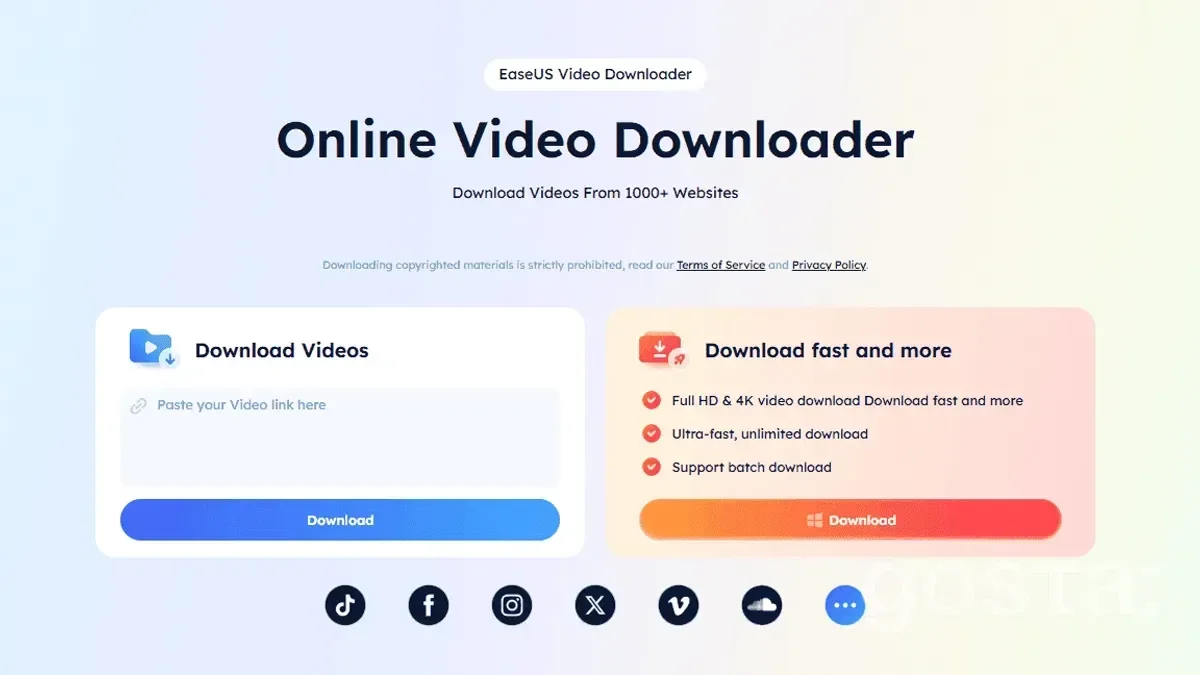
Here's how to use it:
- Open your browser and visit the official website of EaseUS Online Video Downloader.
- Find the video you want to download on YouTube or other video platforms, and copy the video link.
- On the home page, locate the input box and paste the copied video link there.
- Choose the video format and quality you wish to download (e.g., MP4, 1080p, etc.).
- Click the "Download" button and wait for the tool to process and start downloading the video.
- Once the download is complete, select the path to save the video and click "Save."
2. Aurylab YouTube Video Downloader
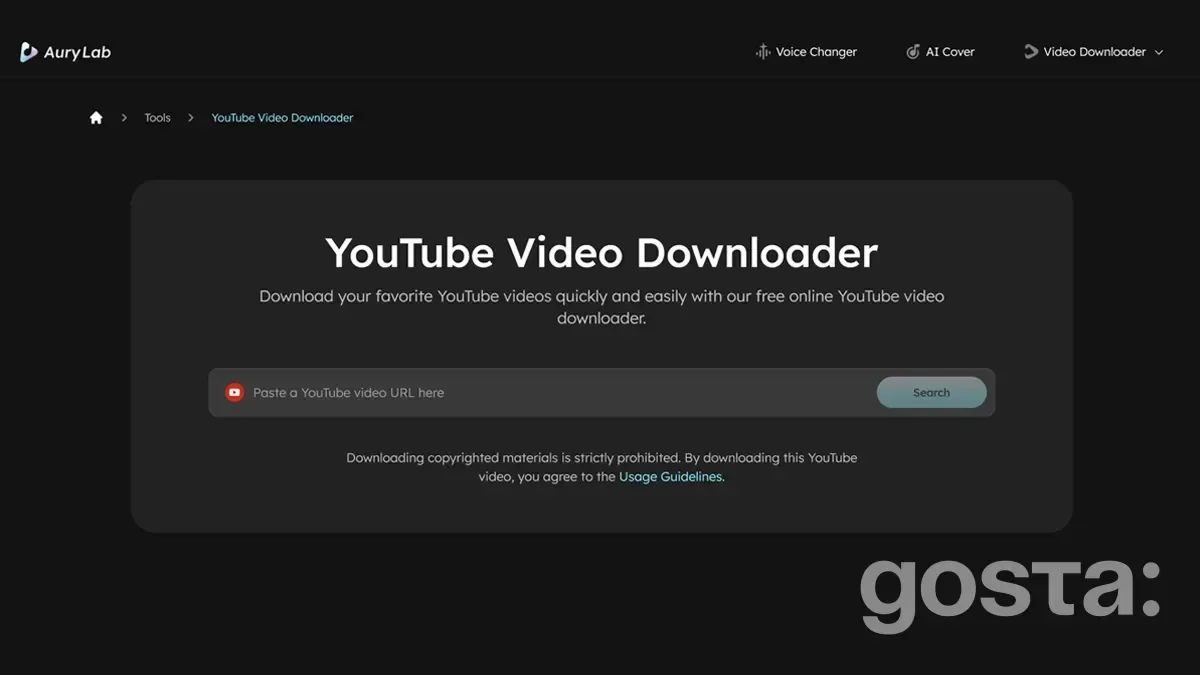
Here's how to use it:
- Go to the Aurylab YouTube Video Downloader official site.
- Copy the URL of the YouTube video you want to download.
- The video will be opened in a new window. Select the video format and quality you would like to download (e.g., MP4, 1080p, etc.).
- Click the three-dot button at the lower right corner, and click "Download" to start saving.
- Then, you can check the download progress from the Chrome Downloads. By default, Google Chrome saves downloaded files to the "Downloads" folder within your user account.
3. SaveFrom.net
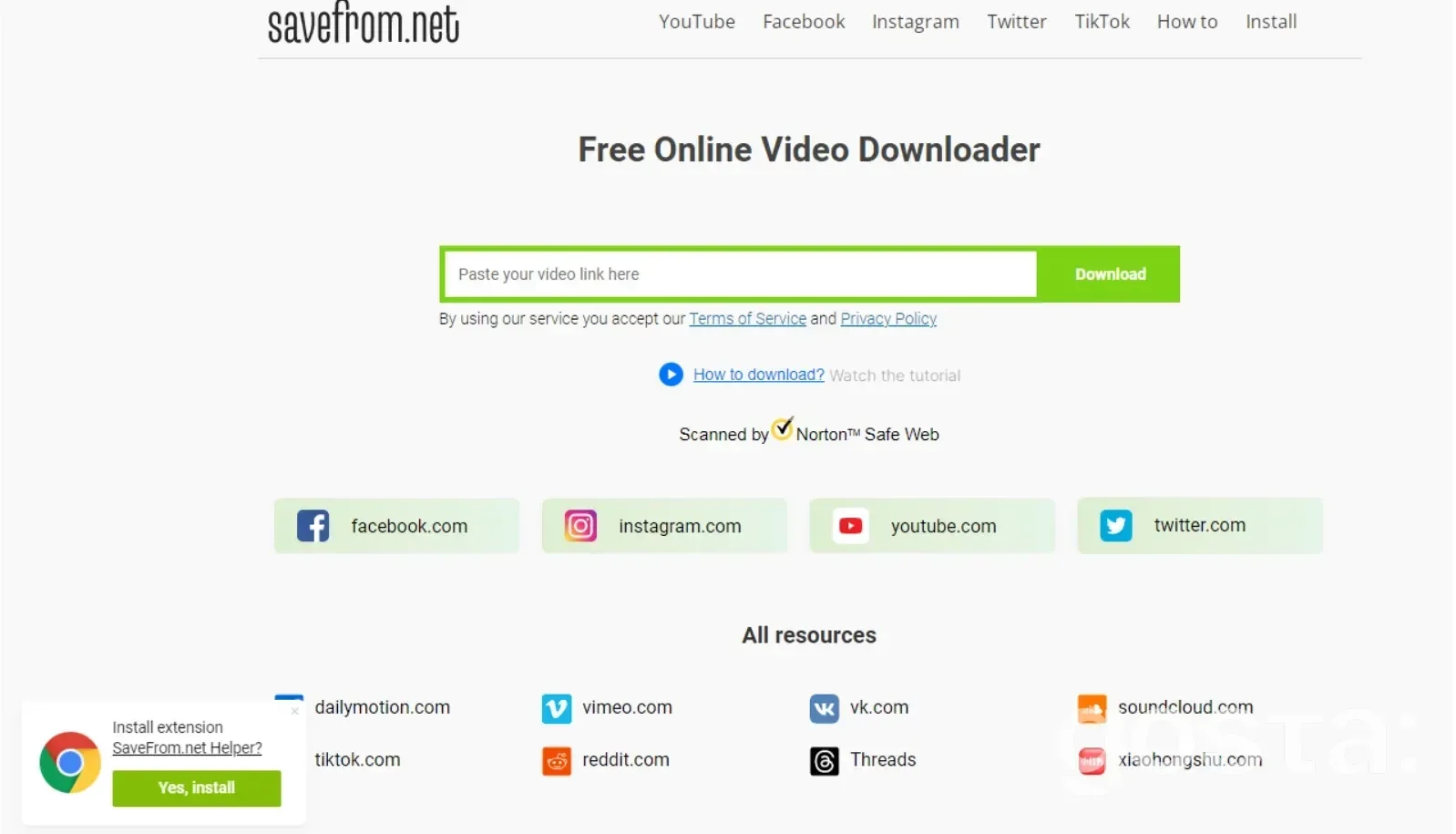
Here's how to use it:
- Open your browser and visit the official website of SaveFrom.net (double-check the address so you don't end up on a fake site).
- Go to YouTube and open the video you want. Copy the URL from your browser's address bar (Ctrl+C).
- Paste the link into the download box on the site (Ctrl+V) and hit Enter or the download button.
- You'll see a list of options. Choose the resolution you want (like 720p or 1080p) and format (MP4 is usually the best).
- Click the Download button. The video will start saving to your computer.
- Once it's done, check your Downloads folder (or wherever you chose to save it).
Some online tools show pop-ups or try to push extra software. Just ignore those and don't click on anything suspicious.
How to Download YouTube Videos with a Desktop App
You can also use special software to download YouTube videos. One of the best options is 4K Video Downloader. It's free, simple to use, and works reliably.
Here's how:
- Visit the official site: www.4kdownload.com.
- Download the app for your system (Windows, macOS, or Linux) and install it like any other program.
- Go to YouTube, find your video, and copy its link (Ctrl+C).
- Open 4K Video Downloader and click the Paste Link button at the top left. A settings window will pop up.
- Pick your preferred resolution and format (MP4 is the most versatile). Choose where you want to save the video.
- Hit Download and let the app do the rest. Depending on the size, it could take seconds or a few minutes.
This app also supports subtitles, audio-only downloads, full playlists, and even 3D videos.

How to Save YouTube Videos to a Flash Drive
People often ask how to save YouTube videos directly to a flash drive. It's actually super easy. First, download the video to your computer, then:
- Plug your flash drive into a USB port.
- Open "This PC" or "My Computer" and locate the drive—usually labeled "USB Drive" or something similar.
- Find your downloaded video (usually in your Downloads folder).
- Right-click the video file and select Copy. Go to your USB drive and right-click to Paste it. Or simply drag the file over.
- Once it's copied, click the flash drive icon in your taskbar and choose Eject or Safely Remove Hardware before unplugging it.
That's it! Now you can watch the video anywhere—on another computer, a TV, or even in a car that supports USB.
Smart Tips for Downloading YouTube Videos
Downloading YouTube videos isn't hard, but here are some quick tips to save time and avoid trouble:
- Use trusted tools. Stick to well-known websites and official software. Avoid sketchy sites loaded with pop-ups.
- Don't click everything. If you see a flashy "Download Now" button that looks like an ad—skip it.
- Scan with antivirus. Especially if you're using lesser-known tools. Better safe than sorry.
- Go with MP4. It's the most universal format and works on nearly all devices.
- Check flash drive space. Big video files need plenty of room—make sure your USB drive can handle it.
Another Way: Download for Offline Viewing on YouTube
There's one more option, great if you don't need to move the video to a flash drive. You can save it directly in your YouTube account's downloads folder and watch offline through the app.
Check out this video to see how:
Final Thoughts
Downloading YouTube videos isn't rocket science. It's fast, easy, and doesn't take any tech skills. Use online tools if you just need a video once. Go with an app if you do it often. And moving files to a flash drive? That's a two-minute job. Just remember to be smart about it. Respect copyrights, don't download random stuff, and always keep your computer secure.
FAQ
Can I download YouTube videos with subtitles?
Yes! Many tools include a "Download Subtitles" option. You can pick the language and format too.
What's the best format to download a video in?
MP4 is your safest bet—it works on almost everything. AVI, MKV, or WebM are also options for advanced users.
Can I download videos in Full HD or 4K?
Absolutely—as long as that quality is available on YouTube. Just remember that higher-quality files take up more space.
Is it legal to download YouTube videos?
You're usually fine if you're downloading videos just for personal viewing. But re-uploading or using them commercially without permission? That's a no-go.