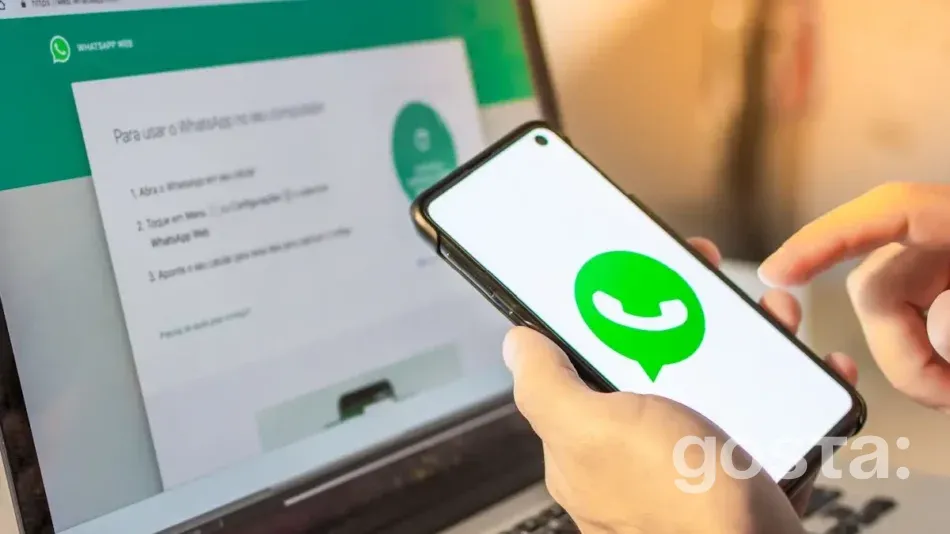
WhatsApp is one of the most popular messaging apps in the world. It is the leading messenger in 60 countries, with 2.4 million people using it every month! However, you can send messages not only on your smartphone but also on a desktop PC. For this purpose, the developers have created the WhatsApp Web version.
WhatsApp Web is the web version of the popular WhatsApp messenger that allows users to use the app on a computer or laptop. The app was launched in 2015.
It is convenient for those who work on a computer often and do not want to switch between devices to check messages. WhatsApp Web syncs with your smartphone in real time, allowing you to send and receive messages, view media files, and perform other basic functions of the messenger. Moreover, WhatsApp Web does not require downloading – you can use it in a browser.
How to Connect to WhatsApp Web?
Connecting to WhatsApp Web is very easy and takes only a few minutes. It is more convenient to do this via a QR code. To do this, open the official website of the app in a browser on your computer. A code will appear on the screen, which you need to scan with your smartphone.
Open WhatsApp on your smartphone.
Go to the “WhatsApp Web” or “Devices” section in the settings. On Android: tap the three dots in the upper-right corner of the screen and select “WhatsApp Web” or “Devices.” On iPhone: go to settings and select “Devices.”
Scan the QR code. A QR code will appear on your computer screen. Use your smartphone’s camera to scan this code.
Sync devices. After scanning, your smartphone and computer will be automatically synced. All messages will be displayed in the browser.
You can also connect to WhatsApp Web via phone number. On the official website, you can request a one-time code that will be sent to your phone. You will need to enter it in a special field to sync the devices.
What Is the Interface of WhatsApp Web?
The interface of WhatsApp Web is very similar to the mobile version of the app:
The chat list is on the left, and the selected chat is displayed on the right.
In the upper right corner, you can find buttons for searching messages, changing settings, and viewing your profile.
The additional options menu allows you to change settings, view the archive, starred messages, and manage devices.
You can send text messages, images, videos, voice messages, documents, and contacts.
How to Use WhatsApp Web?
The WhatsApp Web interface is similar to the mobile app interface, making it user-friendly and intuitive.
Sending Messages. To send a message, simply select a contact from the list, type your text in the input field, and click the send button.
Media Files. You can send photos, videos, and documents by clicking on the “paperclip” icon in the chat and selecting the desired file from your computer.
Voice Messages. To record a voice message, click on the microphone icon, hold it, record your message, and release it when you’re ready to send.
Notifications. WhatsApp Web supports browser notifications. You can enable them to receive messages even when the browser is minimized.
Security. To ensure the security of your session, don’t forget to log out of WhatsApp Web if you’re using a shared or public computer. To do this, go to the settings menu and select “Log out of all devices.”
What Are the Main Features of WhatsApp Web?
Overall, the features of WhatsApp Web are almost the same as those of the mobile app. The browser-based version allows you to customize your profile, archive messages, or mark them as “Unread.” You can send text and voice messages, create groups or communities. You can use WhatsApp Web with up to 4 connected devices and 1 phone.
WhatsApp Web is a convenient tool for users who spend a lot of time on the computer and want to communicate quickly and efficiently via the messenger. Its ease of connection and use makes it an ideal choice for everyday communication, both for personal and work purposes.
Frequently Asked Questions About WhatsApp
Can I Use WhatsApp Web Without a Smartphone?
No, a smartphone with an active WhatsApp account is required to use WhatsApp Web. Your phone must be connected to the internet to sync messages.
Are Data and Chat History Stored on The Computer?
No, all data and chat history are stored only on your smartphone. WhatsApp Web simply displays the messages synced with your phone.
Can I Make Voice and Video Calls Through WhatsApp Web?
No, currently WhatsApp Web does not support voice and video calls. For this, you can use the WhatsApp mobile app.
How to Protect Data When Using WhatsApp Web?
Set up password access to WhatsApp Web. In this case, you’ll need to enter a password to unlock the app on your PC. WhatsApp Web will automatically lock the screen if you don’t perform any actions for a while (the duration can be set in the privacy settings).
Information
Engaging Content about Computers
Explore diverse and fascinating articles that dive deep into the world of computers. We provide a safe, enlightening space at Gosta Media for all tech enthusiasts to satisfy their hunger for knowledge about the ever-evolving world of computing. Getting Smarter With Each Click: Computer Tag Stories Our Computer tag envelops…
Subscribe to the monthly news digest from Gosta Media
The main news and updates from the team about gadgets, sports, cars, health, and lifestyle.
Get Your Personalized Synastry Chart (PDF)
We’ll email your full compatibility reading as a beautifully designed PDF. Just enter your email below and proceed to secure checkout.
One-time payment – just $9.99
Warning:
Access only for persons over 21 years of age
This section contains information about gambling and is available only to persons who are 21 years of age or older in accordance with the applicable laws of Ukraine. Please confirm that you are 21 years of age or older.
This platform does not have a Ukrainian license. The link is provided for informational purposes only. Participation in games on such sites may violate Ukrainian law.