
How to Use Telegram Web: How to Log In and Set Up an Account
Telegram is one of the most popular messaging apps globally, ranking fourth or fifth depending on different sources. Today, it has evolved into a full-fledged social network. Well-known and influentia

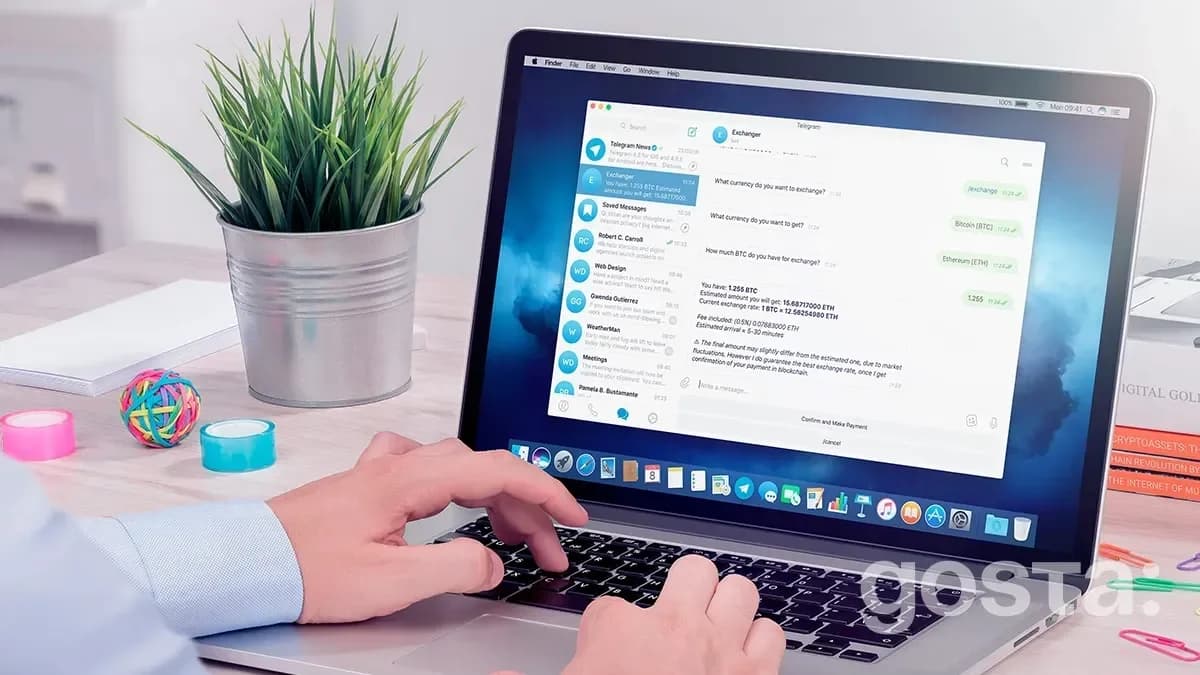
Telegram is one of the most popular messaging apps globally, ranking fourth or fifth depending on different sources. Today, it has evolved into a full-fledged social network. Well-known and influential media outlets, politicians, celebrities, and ordinary people have their own channels here. You can watch videos and share files. Many people find it more convenient to do this on a large screen, which is why Telegram Web for personal computers is gaining popularity.
Earlier we wrote: Top 5 Popular Browsers: Review of Speed, Security, and Convenience
How To Log Into Telegram Web
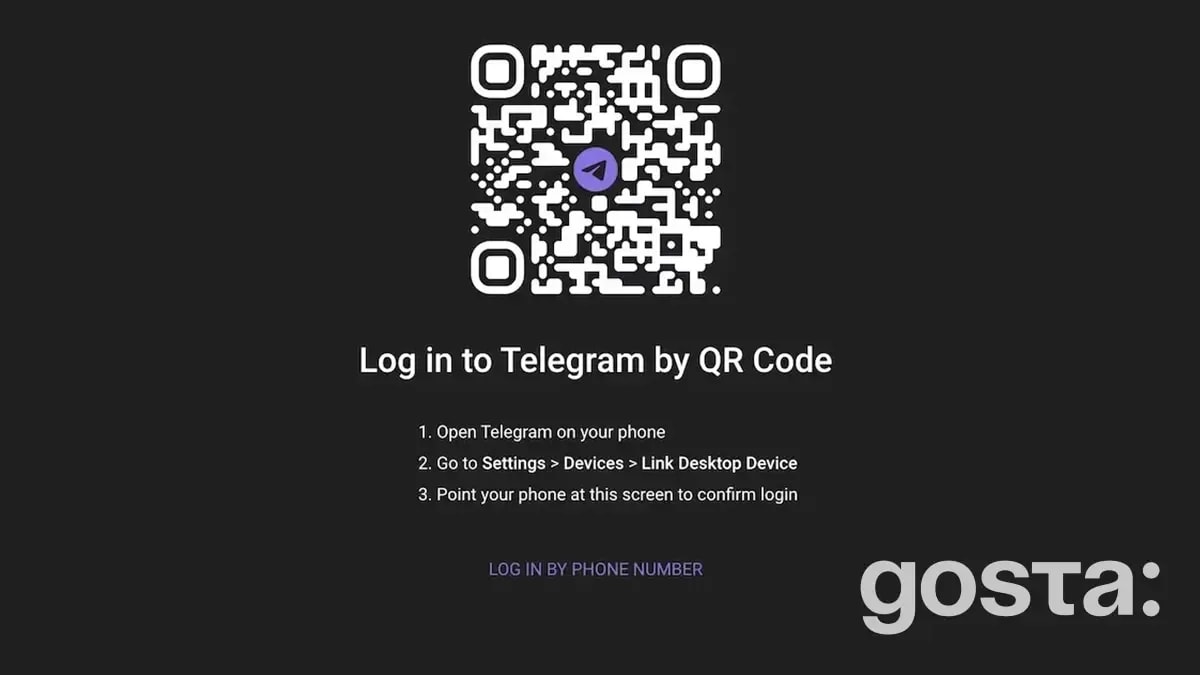
Where to begin when using Telegram Web? First, find the login page via a search engine. You'll immediately be prompted to log into your Telegram account using a QR code. If you already use the app on your smartphone, logging in will take just a few seconds:
- Open Telegram on your mobile device.
- Find the menu item "Settings" – "Devices" – "Link to Desktop."
- Click the green button and scan the QR code on your monitor screen.
If two-factor authentication is enabled on your mobile app, you will also need to enter your password in Telegram Web.
If you don't use the mobile app or prefer not to log into Telegram Web using it, you can select the "Log in with phone number" option below the QR code. Enter your phone number and the code you receive in the app or via SMS if you don't have the mobile version of Telegram.
How To Start Using Telegram Web
If you've already used the mobile app, you'll find Telegram Web easy to navigate. And even beginners should quickly figure it out. The interface is incredibly simple and intuitive. It's divided into two panels:
- On the right, you'll see your chats.
- On the left, the current message.
By selecting a chat, you'll see its messages. In the upper left corner, there's a search bar. To the left of it are three horizontal lines, which, when clicked, open a menu with ten items:
- Saved – Access to cloud storage where you can send important messages.
- Contacts – All your contacts.
- My Stories – If you haven't created stories yet, this section will be empty.
- Settings – Access to your account settings.
- Night Mode – Switch between light and dark modes.
- Animation – The ability to enable or disable animated emojis, etc.
- Telegram Features – An information channel from developers to stay updated.
- Report Bug – Takes you to a page where you can report bugs and glitches.
- Switch to Version K or A – By the way, versions Telegram Web A and K have very few differences.
- Download App – Here, you can download the PC version.
If you look in the bottom left corner where the chats are, you'll notice a blue circle with a pencil icon. It allows you to create a message, group, or channel.
Telegram Web – Features
The functionality of different versions of the messenger is almost identical. You can send text messages, edit them after sending, delete them, add stickers and emojis, create and view channels, and participate in group chats. Additionally, Telegram Web allows you to:
- Exchange voice messages, photos, videos, and files.
- Make video calls.
- Enable or disable chat notifications, block users.
- Create folders and archive messages.
However, video messages in the form of circles are not available in the web version. Also, there are no secret chats or message previews here.
How To Make Calls On Telegram Web
A handy feature of Telegram Web is the ability to make calls directly from your browser. All you need is a microphone – either built-in or connected. To make a call, select a contact and find the phone icon in the upper right corner. There, you'll also find three vertically aligned dots that open a small menu. Here you can manage the contact, make a video call, block or edit the contact, etc.
Group Calls In Telegram Web
As in the mobile app, you can make group calls here. First, you need to create a group or select an existing one. In the upper right corner, you'll see the group call icon. In this mode, you can use the camera and share your screen. A very convenient feature for meetings.
Telegram Web Settings
To make using Telegram Web as convenient as possible, you need to configure your account. You already know where the "Settings" button is located. What's next? By clicking the settings button, you'll get a new menu:
- General Settings – Message text size, wallpapers, themes, etc.
- Animation Quality – Interface animation, emojis, stickers, etc.
- Notifications – Choose which notifications you want or don't want to receive.
- Data and Storage – Configure auto-downloading of files.
- Privacy and Security – Set up user blocking and two-step verification, and choose the appropriate privacy level—who can see which of your data.
- Chat Folders – For convenient communication, you can group chats.
- Devices – Manage active Telegram sessions on various devices.
- Language – Self-explanatory.
- Stickers and Emojis – Settings for reactions and sticker packs.
Just below are buttons for purchasing Premium, the FAQ section, privacy policy information, and a support button.
How Safe Is Telegram Web?
Telegram is one of the most secure messaging apps. This applies to all its versions. To further enhance protection, use two-step verification. Every time you log in from a new device, you'll need to enter not only your password but also a confirmation code received on your phone. Don't forget, security largely depends on the user. Choose complex passwords and don't ignore two-factor authentication.
How To Log Out Of Telegram Web?
The logout button in Telegram Web is somewhat awkwardly placed, and beginners might need help finding it. You need to go to the Settings menu and select Settings. Above the profile photo, there's a pencil icon that allows you to edit your personal information. To the right, there's a button with three vertically aligned dots. Click it to log out of the account.
How To Use Telegram Web – Video
To better understand how to use Telegram Web and see everything in real-life examples, watch the video:
Conclusions
Telegram Web is a convenient alternative to the mobile app. It has almost the same functionality and a very similar interface. Using the web version is easy, and even beginners will get the hang of it. It's secure enough and works on various operating systems.
Frequently Asked Questions About Telegram Web
Can I Use Telegram Web Without a Phone Number?
No, a phone number is required to register and is linked to your account.
Can I Hide My Online Status in Telegram Web?
Yes, this option is available in the "Privacy and Security" menu.
Can I Log Into My Account on Both My Phone and Telegram Web at the Same Time?
Yes, it's possible and doesn't affect the performance of the messenger or your account usage.
Best of the week — in your inbox
No spam. Only top Gosta stories. Unsubscribe in one click.
Comments