
What Is a Good Internet Speed for Home? Numbers for Streaming, Gaming, and Work
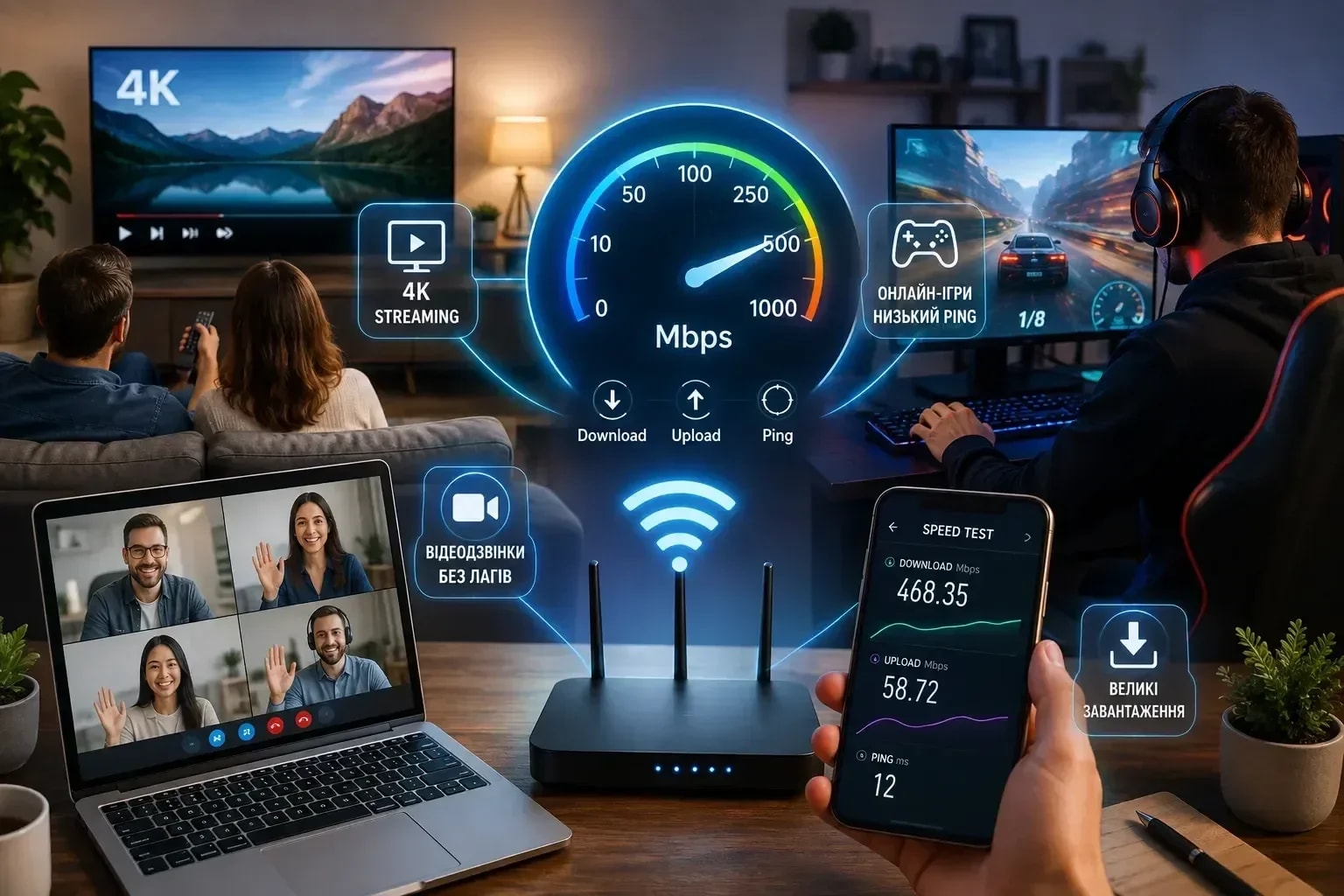
If you are asking what is a good internet speed for home, a practical 2026 answer is 100 Mbps download for a typical household with several phones, a smart TV, video calls, and ordinary gaming. A single person can live comfortably on 50 Mbps, while busy homes with several simultaneous 4K streams, large downloads, cloud backups, or multiple remote workers may benefit from 300–500 Mbps. Gigabit internet is useful for some households, but it is not automatically better for gaming or Zoom.

Contents14
- What Is a Good Internet Speed for Home?
- What Does Mbps Mean?
- Why Speedtest Shows Download, Upload, and Ping
- Download — What Download Speed Is Required
- Upload — Why Return Speed Is Also Important
- What Is Ping and What Ping Is Considered Good
- What Is Jitter?
- What Internet Speed Is Required for YouTube
- What Internet Speed Is Required for Netflix
- How Many Mbps Are Required for Zoom and Video Calls
- What Internet Speed Is Required for Online Games
- Do You Need Gigabit Internet for Games?
- And for Cloud Games, Speed Is More Important
- Will 10 Mbit/s Be Enough?
If you are asking what is a good internet speed for home, a practical 2026 answer is 100 Mbps download for a typical household with several phones, a smart TV, video calls, and ordinary gaming. A single person can live comfortably on 50 Mbps, while busy homes with several simultaneous 4K streams, large downloads, cloud backups, or multiple remote workers may benefit from 300–500 Mbps. Gigabit internet is useful for some households, but it is not automatically better for gaming or Zoom.
The number in the plan is only part of the experience. Upload speed, ping, jitter, Wi-Fi quality, router placement, and congestion can matter more than another few hundred megabits.
What Is a Good Internet Speed for Home?
For most homes, these ranges are useful rather than absolute:
10–25 Mbps: workable for one light user, basic browsing, and one HD stream, but little headroom.
50 Mbps: comfortable for one or two people with Full HD streaming and video calls.
100 Mbps: a strong general-purpose home connection for several ordinary devices.
300–500 Mbps: useful for larger households, fast downloads, multiple 4K streams, cloud backup, and heavy remote work.
1 Gbps: best when several users move large files or you value very short download times; unnecessary for many ordinary homes.
Always ask whether the advertised speed is symmetrical. A 500/500 Mbps fiber plan behaves very differently from 500 Mbps down with only 20 Mbps up when you upload video or back up data.
What Does Mbps Mean?
Mbps means megabits per second. Internet providers normally advertise speed in bits, while file sizes are usually shown in bytes. Eight bits equal one byte, so a perfect 100 Mbps connection has a theoretical maximum of about 12.5 megabytes per second before protocol overhead and real-world limitations.
That is why a 1 GB file does not download in ten seconds on 100 Mbps internet. The units are different, and actual throughput is lower than the headline number.
Why Speedtest Shows Download, Upload, and Ping
A speed test measures several different parts of the connection:
Download shows how quickly data comes to you: streaming, webpages, game downloads, cloud files.
Upload shows how quickly data leaves you: video calls, cloud backup, sending files, live streaming.
Ping measures delay, usually in milliseconds.
Many tests also show jitter, which indicates how much that delay varies.
A connection can have excellent download speed but feel bad on calls if upload is saturated or latency is unstable.
Download — What Download Speed Is Required
For one person, 50–100 Mbps is already enough for most daily tasks. The need rises when several users stream high-resolution video or download large games and files at the same time.
Streaming itself is not as demanding as many people assume. Official recommendations are far below 100 Mbps for one stream: YouTube currently recommends about 20 Mbps sustained for 4K, while Netflix recommends 15 Mbps or higher for its 4K/UHD stream.
Upload — Why Return Speed Is Also Important
Upload matters for Zoom, Teams, cloud backup, sending large videos, uploading to YouTube, remote desktop, security cameras, and live streaming. If the plan gives only a small upload channel, one computer backing up photos can affect everyone else's calls.
For ordinary home work, 10–20 Mbps upload can be enough for several normal tasks, but 50–100 Mbps or symmetrical fiber is much more comfortable for creators, large cloud transfers, and multiple video calls.
What Is Ping and What Ping Is Considered Good
Ping is round-trip delay between your device and a server. Lower is usually better.
Under 20 ms: excellent for many nearby services and games.
20–40 ms: very good.
40–70 ms: generally fine for ordinary gaming and calls.
70–100 ms: noticeable in fast interactive games.
Over 100 ms: delay becomes increasingly obvious.
Server distance matters. A Kyiv user can have 5–15 ms to a local server and much higher latency to a server on another continent without anything being wrong with the home connection.
What Is Jitter?
Jitter is variation in latency. A stable 40 ms connection can feel better than one that jumps between 10 and 150 ms. Voice calls and online games are especially sensitive because packets need to arrive at predictable intervals.
Low jitter is preferable; values in the single-digit milliseconds are generally good. High jitter often points to Wi-Fi interference, congestion, overloaded upload, or an unstable provider path.
What Internet Speed Is Required for YouTube
YouTube's current help guidance lists approximate sustained speeds of:
0.7 Mbps for 360p;
1.1 Mbps for 480p;
2.5 Mbps for 720p HD;
5 Mbps for 1080p HD;
20 Mbps for 4K UHD.
Those are per-stream recommendations. A household needs headroom for other devices, background downloads, and speed fluctuations. For two simultaneous 4K YouTube streams plus normal browsing, 50–100 Mbps is a more comfortable plan than the bare mathematical minimum.
What Internet Speed Is Required for Netflix
Netflix currently recommends at least:
3 Mbps for 720p HD;
5 Mbps for 1080p Full HD;
15 Mbps for 4K/UHD.
Again, that is for one stable stream. If the connection is shared, add capacity for other people rather than choosing exactly 15 Mbps because one TV can theoretically play 4K.
How Many Mbps Are Required for Zoom and Video Calls
Zoom's current published recommendations for ordinary meetings are modest. For 720p HD group video, it lists roughly 2.6 Mbps upload / 1.8 Mbps download; for 1080p it lists around 3.8 Mbps upload / 3.0 Mbps download under supported conditions.
The problem is usually not raw speed but stability. A 100 Mbps plan with bad Wi-Fi, packet loss, or a saturated upload can perform worse than a clean 30 Mbps connection. For remote work, prioritize stable upload and low latency.
What Internet Speed Is Required for Online Games
Most locally rendered online games use surprisingly little bandwidth during play—often far less than video streaming. The more important metrics are latency, jitter, packet loss, and route quality to the game server.
A stable 25–50 Mbps connection is enough for the gameplay traffic of typical PC or console titles. Higher speed helps with game downloads, updates, streaming your gameplay, and other people using the connection at the same time.
Do You Need Gigabit Internet for Games?
No. A 1 Gbps plan does not turn a 50 ms route to a game server into 5 ms. It mainly increases throughput. That can reduce the time needed to download a 100 GB game, but once the match starts, ping and stability dominate.
If gaming is your priority, use Ethernet where possible, choose a nearby game region, avoid saturating upload, and fix Wi-Fi interference before paying only for a larger headline number.
And for Cloud Games, Speed Is More Important
Cloud gaming streams the rendered video to your device in real time, so it needs both sustained bandwidth and low latency. NVIDIA's current GeForce NOW requirements, for example, range from about 15 Mbps for HD, 25 Mbps for Full HD 60 fps, and higher speeds for 1440p, 4K, and high-frame-rate modes.
Cloud gaming also benefits strongly from Ethernet or clean 5/6 GHz Wi-Fi. A fast plan cannot compensate for large packet loss or unstable wireless latency.
Will 10 Mbit/s Be Enough?
It can be enough for one person doing basic browsing, messaging, music, and one HD stream, but it leaves little margin. Large downloads are slow, 4K streaming is limited, and a background update can interfere with a call.
Ten megabits is better viewed as a basic connection than a comfortable modern household target.
Will 50 Mbps Be Enough?
Yes, for many one- or two-person homes. It can support Full HD streaming, video calls, browsing, and ordinary gaming simultaneously if the connection is stable.
It becomes tight when several people stream 4K, download large files, or run cloud backups at once. If the price difference is small, 100 Mbps gives useful headroom.
Will 100 Mbit/s Be Enough?
For most households, yes. It is a strong default because it supports multiple HD/4K activities without paying for capacity that sits unused most of the day.
The exception is a home with heavy file transfers, several power users, a media server, frequent 100+ GB downloads, or slow asymmetric upload. In those cases, 300–500 Mbps or symmetrical fiber may be worth it.
Who Needs 300–500 Mbps
Choose this range when several people regularly work or study online, stream 4K on multiple TVs, download large games, upload video, back up photos, or use cloud storage at the same time.
It is also useful if you want large downloads to finish quickly. At real-world 400 Mbps, a 50 GB file can theoretically transfer in roughly 17 minutes before overhead; at 100 Mbps, the same file takes around an hour and seven minutes.
Who Really Needs 1 Gbps
Gigabit makes sense for households that move very large files frequently, have multiple heavy users, run local servers or high-speed NAS workflows, or simply value fast downloads enough to pay for them.
A single person watching Netflix, browsing, and gaming will usually not notice a fourfold improvement moving from 250 Mbps to 1 Gbps. The line is faster; the applications often do not need it.
Why Does Speedtest Show About 900–950 Mbps on a 1 Gbps Tariff?
Because protocol overhead and Ethernet framing consume part of the nominal link capacity. On ordinary gigabit Ethernet, a measured result around 900–950 Mbps can be completely normal.
To exceed that meaningfully, the router, computer, network adapter, switch, and cabling may need 2.5 Gigabit Ethernet or faster, and the provider must deliver more than a 1 Gbps physical link.
How to Correctly Check the Speed of the Internet
Connect one computer by Ethernet directly to the router if possible.
Pause cloud backups, torrents, downloads, and streaming on other devices.
Choose a nearby test server first.
Run the test several times at different times of day.
Record download, upload, ping, and jitter.
Repeat over Wi-Fi separately to measure the wireless part of the problem.
If results are poor, test with another device and cable before blaming the provider.
One test on a phone in a far bedroom is a Wi-Fi test, not necessarily a provider-speed test.
Why One Speed Test Is Not Enough
Internet performance changes with local Wi-Fi conditions, provider congestion, the test server, background traffic, and time of day. A single unusually high or low result can mislead you.
Take three tests under the same conditions and compare the median. If problems happen only in the evening, test specifically then.
Why Is the Internet Speed Lower Than Declared?
Possible causes include Wi-Fi interference, a 100 Mbps Ethernet port, old cable, slow router CPU, provider congestion, a distant speed-test server, background downloads, VPN overhead, or a device that cannot process the full connection speed.
The phrase "up to" in many plans also matters. Read the provider's actual service terms and guaranteed/minimum parameters rather than assuming every device must always see the headline rate.
Why Wi-Fi Is Slower Than Cable Internet
Wi-Fi shares radio spectrum and is affected by distance, walls, neighboring networks, device antennas, channel width, interference, and router placement. Ethernet is a dedicated wired link and is usually more predictable.
Modern Wi-Fi can exceed gigabit speeds under ideal conditions, but that does not mean every phone in every room will do so. Use cable for desktop PCs, consoles, TVs, and workstations when practical.
Wi-Fi 2.4 or 5 GHz, Whichever Is Faster
5 GHz is usually faster and less crowded at short-to-medium range, but it loses strength more quickly through walls. 2.4 GHz travels farther and works better for low-bandwidth devices, but it offers less capacity and is often more congested.
Wi-Fi 6E and Wi-Fi 7 can also use 6 GHz on compatible devices, providing more clean spectrum at shorter range. The best band depends on distance and hardware.
Where to Put a Wi-Fi Router
Place the router centrally, elevated, and in the open rather than inside a cabinet or behind a television. Keep it away from thick reinforced-concrete walls, large metal objects, microwaves, and other strong interference sources.
For a large apartment or house, one powerful router in a bad corner is often worse than a properly designed mesh or multiple wired access points.
Why Phone and Laptop Show Different Wi-Fi Speed
They may support different Wi-Fi generations, antenna configurations, channel widths, power-saving modes, and bands. A laptop with a 2x2 Wi-Fi 6/6E adapter can be much faster than an older phone using one spatial stream.
Also check whether one device connected to 2.4 GHz while the other connected to 5 GHz or 6 GHz.
Why the Test on the Phone Can Be Slow
The phone may be far from the router, connected to a slower band, in battery saver mode, downloading updates, using a VPN, or limited by its Wi-Fi hardware. The test app itself may also choose a different server.
Move near the router, disable VPN temporarily for the test, confirm the Wi-Fi band, and compare with another device.
What Is the Difference in Mobile Internet Speed?
Mobile speed depends on signal strength, cell load, radio technology, spectrum, distance from the base station, indoor penetration, your tariff, and device modem capabilities. The same phone can show 300 Mbps outdoors and 20 Mbps in a basement minutes later.
Latency and upload can also vary more than on a good fiber connection. Use several tests in the actual place where you need the service.
How to Keep Home Internet During a Power Outage
Ask your provider what access technology reaches your home and whether its network has backup power.
If you have fiber/PON and the provider's upstream equipment remains powered, back up your optical terminal (ONU/ONT) and router with a compatible UPS or low-voltage backup supply.
Check the voltage and connector requirements before powering network equipment.
Test the setup during normal conditions rather than waiting for an outage.
Keep mobile data as a fallback if the fixed network goes down.
A battery-powered router cannot keep the internet working if the provider's building switch or upstream equipment has no backup power.
How to Understand Whether It Is Worth Switching to a Faster Tariff
Test by Ethernet and confirm your current provider is actually delivering the existing plan.
Identify the real complaint: slow downloads, bad Wi-Fi, weak upload, high ping, or evening congestion.
Check whether your devices and router support the faster tier.
Estimate how often you transfer large files.
Compare the upload speed, not only download.
Upgrade when the existing line is genuinely saturated during normal use.
If the problem is one weak room, buy better Wi-Fi coverage rather than another 500 Mbps you cannot reach there.
When Increasing Speed Will Not Solve Anything
A faster plan will not fix a poor Wi-Fi signal, high latency to a distant server, packet loss, bad router placement, overloaded device, damaged cable, poor game server, slow website, VPN bottleneck, or unstable provider network.
Measure first. Otherwise you may pay for 1 Gbps and continue seeing exactly the same stutter on the same weak Wi-Fi link.
How Much Will It Take to Download a 10, 50, or 100 GB File
Approximate ideal times before overhead:
50 Mbps | ~27 min | ~2 h 13 min | ~4 h 27 min |
|---|---|---|---|
100 Mbps | ~13 min | ~1 h 7 min | ~2 h 13 min |
300 Mbps | ~4.5 min | ~22 min | ~44 min |
500 Mbps | ~2.7 min | ~13 min | ~27 min |
1 Gbps | ~1.3 min | ~6.7 min | ~13 min |
Real downloads are slower because of protocol overhead, server limits, storage speed, Wi-Fi, and other traffic.
How to Improve Wi-Fi Speed Without Changing the Tariff
Move the router to a central open location.
Use 5 GHz or 6 GHz for nearby high-speed devices.
Connect stationary devices by Ethernet.
Update router firmware.
Replace very old Wi-Fi hardware if it is the bottleneck.
Use a wired access point or well-designed mesh for distant rooms.
Avoid placing the router behind metal, inside cabinets, or on the floor.
Check channel congestion and automatic channel selection.
Pause unnecessary cloud backups during critical calls.
Reboot only as troubleshooting, not as a permanent daily fix.
Improving the wireless link often gives a larger visible benefit than upgrading the provider plan.
Internet Speed: What Is More Important Than a Beautiful Figure in the Tariff
For real experience, prioritize stability, adequate upload, low packet loss, reasonable latency, good Wi-Fi coverage, and provider reliability. A consistent 100/100 Mbps fiber connection can be better for work than an unstable 500/20 Mbps line.
Choose the plan for what the household does, not for the largest number available in the advertisement.
When comparing internet plans, check the router and in-home network before assuming the access line is the only bottleneck. A provider may deliver 1 Gbps to the optical terminal while an old router distributes only 200–300 Mbps over Wi-Fi in the room where you actually work. In that case, upgrading from 1 Gbps to a faster plan changes nothing until the local network is improved.
The same applies to wired links. A single 100 Mbps Ethernet port or cable negotiated at 100 Mbps creates a hard ceiling no matter how fast the provider connection is. In Windows, macOS, or the router interface, check the negotiated link rate. For gigabit service, every relevant component—router WAN/LAN ports, switches, adapters, and cabling—must support gigabit speeds. For plans above 1 Gbps, at least some equipment must support 2.5GbE or faster.
Families should also think in terms of simultaneous use rather than adding every device's maximum theoretical speed. Ten phones connected to Wi-Fi do not each consume 100 Mbps all day. Capacity matters when several devices are actively streaming, downloading, backing up, or calling at once. That is why a well-managed 300 Mbps connection can feel better than a poorly configured gigabit network.
For remote work, reliability is often worth more than peak throughput. If your job depends on video calls or remote access, consider whether the provider offers good uptime, sensible support, and backup power in your area. A second independent connection—such as mobile data from another operator—may provide more practical resilience than upgrading the main line from 500 Mbps to 1 Gbps.
The most useful way to choose a home plan is to estimate simultaneous use, not add the maximum advertised requirement of every device in the house. A television streaming 4K, two phones browsing social media, a laptop on a video call, and a game console can coexist comfortably on a connection that is much slower than 1 Gbps if Wi-Fi is stable and the line is not saturated. The exact requirement changes when several people download large files, back up photos, stream at high resolution, or upload video at the same time.
Upload capacity deserves special attention on asymmetrical plans. A household may have hundreds of megabits per second downstream but much less upstream. Cloud backups, live streaming, sending large work files, security cameras, and multiple video calls can saturate the upload side and make the whole connection feel unstable. If calls freeze when someone starts a backup, the issue may be upload congestion rather than insufficient download speed.
For most homes, moving from a weak router or poor Wi-Fi placement to a well-positioned modern access point produces a bigger practical improvement than paying for a faster tariff. Test once over Ethernet near the router and once over Wi-Fi in the room where the problem occurs. If wired speed is close to the plan but Wi-Fi is poor, fix the local network first. If both are consistently low, then investigate the provider, cabling, modem/ONT, or plan.
FAQ
What is the normal internet speed for home?
For a typical household in 2026, 100 Mbps is a good default. One light user may be fine with 50 Mbps; larger or heavier households often benefit from 300–500 Mbps.
Is 100 Mbit/s fast internet?
Yes. It is fast enough for multiple streams, video calls, gaming, browsing, and ordinary downloads in most homes.
Is 50 Mbps enough for the home?
Yes for one or two moderate users, especially if only one high-resolution stream is active at a time. Larger households may want more headroom.
How many Mbps do you need for YouTube 1080p?
YouTube currently recommends about 5 Mbps sustained for 1080p playback.
How many Mbps do you need for YouTube 4K?
YouTube currently recommends about 20 Mbps sustained for 4K UHD playback.
What speed do you need for Netflix 4K?
Netflix currently recommends 15 Mbps or higher for one 4K/UHD stream.
What speed is required for Zoom?
Zoom lists only a few megabits per second for HD video calls, but stable upload, low packet loss, and low jitter are more important than a very large download number.
What internet speed is required for online games?
Gameplay itself usually needs little bandwidth; 25–50 Mbps is enough for many households if latency and packet loss are good. Large game downloads benefit from faster plans.
What is the normal ping for games?
Under 40 ms is very good for many games, 40–70 ms is usually acceptable, and higher latency becomes increasingly noticeable in fast competitive play.
Why does the game lag at a speed of 500 Mbps?
Because bandwidth is not the same as latency or stability. Wi-Fi interference, packet loss, jitter, server distance, or upload congestion can cause lag on a very fast plan.
Why does Speedtest show less than the tariff?
Wi-Fi, protocol overhead, device limitations, cables, router ports, server choice, and provider congestion can all lower the measured result.
Why do I only see 100 Mbps on a 1 Gbps plan?
A 100 Mbps Ethernet port, bad/old cable, negotiated link speed of 100 Mbps, old router, or device limitation is a common cause. Check the physical link speed before changing the tariff.
Best of the week — in your inbox
No spam. Only top Gosta stories. Unsubscribe in one click.
Comments