
How to Turn Off Location Sharing: Google Maps, Messengers, iPhone, and Android
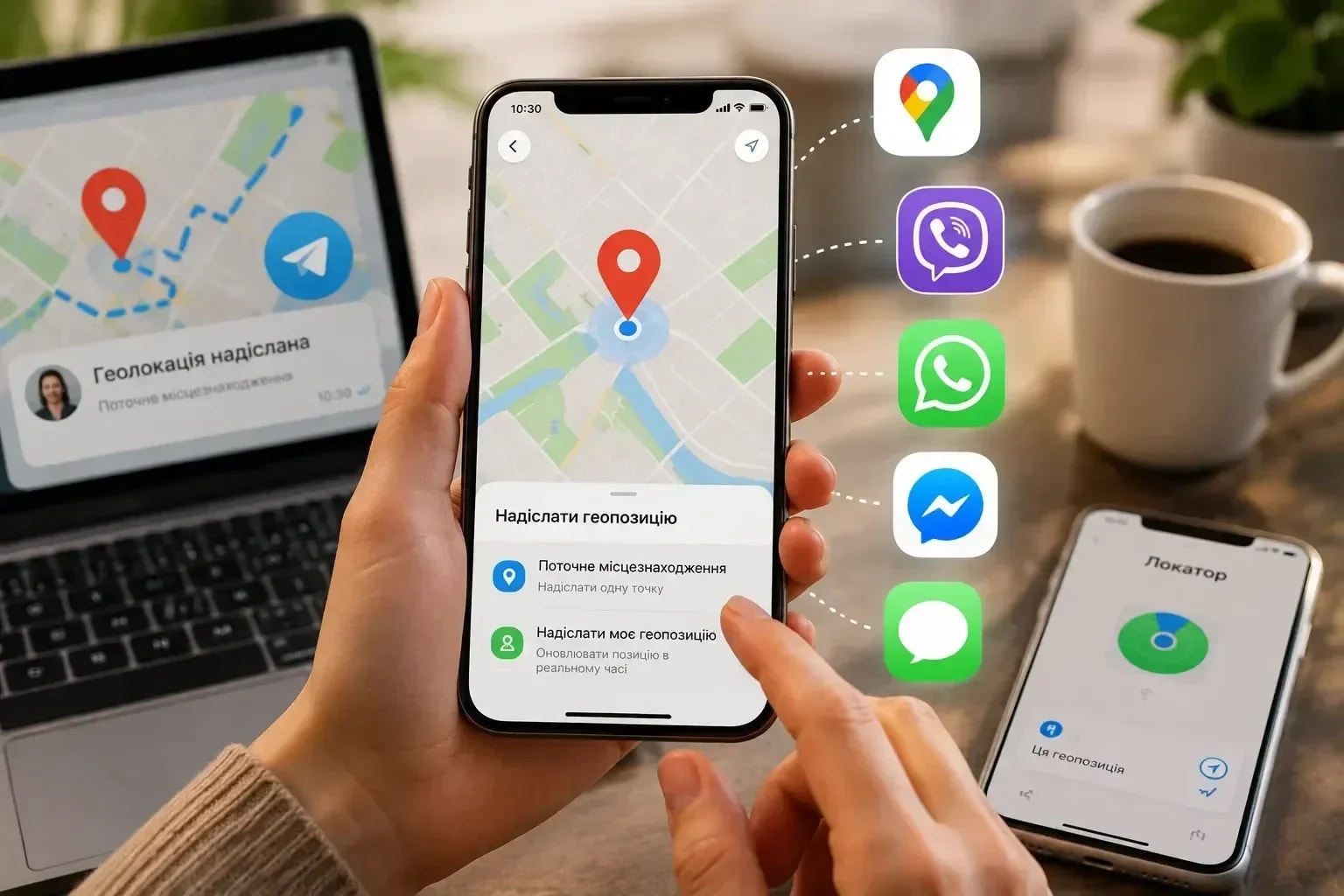
If you need to know how to turn off location sharing, first identify where the sharing started. A phone can expose location through Google Maps, Apple's Find My, Messages, Telegram, WhatsApp, Viber, or another app, and stopping one service does not necessarily stop the others. The fastest check is to review active sharing inside the app you used and then verify the phone's broader location permissions.

Contents14
- How to Turn Off Location Sharing as Quickly as Possible
- Static Point or Live Location — Which Is Better to Choose
- How to Share Location Through Google Maps
- How to Share Your Current Location in Google Maps
- How to Share Location With a Person Without a Google Account
- How to Share Your Route and Arrival Time With Google Maps
- How to Share Location on iPhone
- How to Share Live Location on iPhone
- How to Share Location Through Find My on iPhone
- How to Stop Sharing Location on iPhone
- How to Share Location on Android
- How to Turn On Geolocation on Android
- How to Share Location in Telegram
- How to Share Live Location in Telegram
If you need to know how to turn off location sharing, first identify where the sharing started. A phone can expose location through Google Maps, Apple's Find My, Messages, Telegram, WhatsApp, Viber, or another app, and stopping one service does not necessarily stop the others. The fastest check is to review active sharing inside the app you used and then verify the phone's broader location permissions.
The steps below cover current iPhone and Android behavior plus the common messenger flows. Menu names can shift slightly after app updates, so follow the same logic even if a button moves.
How to Turn Off Location Sharing as Quickly as Possible
Open the app where you shared the location.
Find the active person, chat, or live-location card.
Tap Stop sharing, Stop live location, or the closest equivalent.
If you cannot remember the app, review Google Maps Location Sharing and Apple's Find My first.
On iPhone, you can also review Settings > Privacy & Security > Location Services and Find My.
On Android, review Settings > Location > App permissions or the equivalent menu for your device.
Reopen the sharing screen and confirm the person is no longer listed.
Do not disable all location services unless that is what you actually want; maps, weather, emergency features, camera geotagging, and other apps may be affected.
Static Point or Live Location — Which Is Better to Choose
A static location is one point sent once. It does not update as you move. A live location keeps updating for a period or until you stop it.
Static sharing is better when someone only needs a meeting point, entrance, parking place, or dropped pin. Live sharing is useful for meeting during a journey or sharing progress, but it reveals more information over time and can use more battery.
How to Share Location Through Google Maps
Open Google Maps and sign in.
Tap your profile picture or initial.
Open Location sharing.
Tap New share or the add-person control.
Choose how long to share.
Select the person or sharing method.
Tap Share.
Google's current help notes that real-time sharing can show your recent location and battery information to the people you choose.
How to Share Your Current Location in Google Maps
If you need only a fixed point rather than real-time tracking:
Open Google Maps.
Press and hold the map to drop a pin, or select the place where you are.
Open the place card.
Tap Share.
Choose the messenger or contact.
Send the map link.
This sends the place, not an ongoing feed of your movement.
How to Share Location With a Person Without a Google Account
Google Maps allows link-based sharing in many cases.
Open Google Maps > profile picture > Location sharing > New share.
Choose the sharing duration.
Select the option to copy or send a link.
Send the link through the messenger you trust.
Remember that anyone who receives or forwards the link may be able to access what the link exposes until it expires or you stop sharing.
Google currently limits link-based real-time sharing to a finite period rather than an indefinite account-to-account relationship.
How to Share Your Route and Arrival Time With Google Maps
Set a destination in Google Maps.
Start navigation.
Open the trip information card.
Choose Share trip progress or the current equivalent.
Select the person.
Send the share.
Sharing normally stops when you arrive or end navigation; you can also stop it manually earlier.
This is often more useful than indefinite live location because it is tied to a specific trip.
How to Share Location on iPhone
Apple's Find My app is the main system-level tool.
Open Find My.
Tap People.
Tap the add button and choose Share My Location.
Select a contact.
Tap Send.
Choose the available sharing duration.
If sharing does not work, check Settings > Privacy & Security > Location Services > Find My and make sure the service is allowed to use location.
How to Share Live Location on iPhone
Find My provides ongoing location sharing rather than a single dropped pin.
Open Find My > Me and make sure Share My Location is on.
Open People.
Add the person you want to share with.
Choose the duration offered by the system.
To change which Apple device provides your location, use the Me tab and the current device controls.
Apple may also integrate sharing into Messages, Maps, and Contacts depending on the iOS version.
How to Share Location Through Find My on iPhone
Open Find My.
Tap People.
Tap the add button.
Choose Share My Location.
Enter or select the contact.
Tap Send.
Choose the time period.
For an AirTag or another item, use the Items section instead. Sharing an item's location and sharing your own location are different features.
How to Stop Sharing Location on iPhone
Open Find My.
Tap People.
Select the person.
Scroll to Stop Sharing My Location.
Confirm.
To stop sharing with everyone, Apple currently provides Find My > Me > Share My Location. Turning that setting off hides your location from all people using that Find My sharing relationship. Apple also provides Safety Check in Settings for reviewing sharing and access when personal safety is a concern.
How to Share Location on Android
Android itself can use several apps for location sharing; Google Maps is the most common cross-device option.
Open Google Maps.
Tap your profile picture.
Open Location sharing.
Choose New share.
Select the duration and person.
Tap Share.
For a single point, drop or select a place on the map and send that place link instead of enabling real-time sharing.
How to Turn On Geolocation on Android
Open Settings.
Find Location; on some phones it is under Privacy or Security & privacy.
Turn Use location on.
Open App permissions or Location permissions.
Give the relevant app only the access it needs: while using the app, one time, or another available option.
Avoid granting background access automatically if the feature does not need it.
Manufacturers such as Samsung, Google, Xiaomi, Motorola, and others may use slightly different menu names.
How to Share Location in Telegram
In Telegram, location is normally shared from the attachment menu inside a chat.
Open the chat.
Tap the attachment control.
Choose Location.
Select either the current/static location or the live-location option if available.
Choose the duration for live sharing.
Send.
If the option is missing, check whether Telegram has location permission in the phone's settings.
How to Share Live Location in Telegram
Open the target chat.
Tap the attachment icon.
Open Location.
Choose Share My Live Location or the current equivalent.
Select the duration offered by the app.
Confirm.
A live-location message should remain visible in the conversation while it is active.
How to Stop Live Location in Telegram
Open the chat where live location is active.
Tap the active live-location message or banner.
Choose Stop sharing location or Stop live location.
Confirm if prompted.
Reopen the chat and verify the timer or active state has ended.
If you shared in multiple chats, stop each active share separately.
How to Share Location in WhatsApp
Open the chat or group.
Tap the attachment or plus button.
Choose Location.
Send your current location for a static point, or choose Share live location if offered.
For live sharing, select the duration and add a comment if needed.
Send.
Location permission must be enabled for WhatsApp for the feature to work.
How to Share Location in Viber
The exact Viber layout can change, but the usual flow is:
Open the conversation.
Open the attachment or more-options menu.
Choose the location option.
Select the point or current location shown on the map.
Confirm and send.
If Viber does not show location, check the app's location permission in iPhone or Android settings.
How to Share Not Your Location, but Another Point
Open Google Maps or Apple Maps.
Search for the address, business, entrance, or landmark.
If necessary, press and hold to drop a pin exactly where you mean.
Open the place card.
Tap Share.
Send the link through the chosen messenger.
This is the best method for a meeting point because it does not reveal your movement.
How to Share Location Coordinates
Open a map app.
Press and hold the exact point to drop a pin.
Open the pin details.
Copy the latitude and longitude if the app displays them.
Send them as text or share the map link.
Coordinates are useful for places without a normal street address, but a map link is easier for most people because one tap opens navigation.
Why the Phone Shows the Wrong Geolocation
Location can drift because of weak satellite visibility, indoor use, tall buildings, power-saving mode, disabled precise-location access, poor Wi-Fi/cellular context, an outdated app, or the wrong device being used as the location source.
Move outdoors, turn location off and on, check precise-location permission, and compare more than one map app before assuming the hardware is faulty.
What to Do if Google Maps Does Not Show You Where You Are
Check that the phone's Location setting is on.
Check Google Maps location permission.
Turn on precise location if available and appropriate.
Move to an area with a clearer view of the sky.
Restart Google Maps.
Update the app and operating system if the problem persists.
Test another navigation app to determine whether the issue is system-wide.
A blue accuracy circle that is very large usually means the phone has only an approximate position.
Why Does the Messenger Not Allow You to Share Geolocation
The usual causes are denied location permission, disabled system location, restricted background access, parental or enterprise controls, no network connection, or an app version with a temporary bug.
Open the phone's app-permission settings and confirm that the messenger can use location when required. Do not grant broader permission than necessary just to make one feature work.
Why the Live Location Stopped Updating
Live sharing can stop because the chosen duration expired, battery saver restricted background activity, the app lost permission, the phone went offline, the device was restarted, or the operating system suspended background updates.
Check the active share first. If it still appears active, verify network access, background permission, and location access for that app.
Does Geolocation Work Without the Internet?
The phone can often calculate a position from GPS/GNSS satellites without mobile data, but maps, address lookup, traffic data, and sharing that position with another person generally require some kind of network connection.
So "the phone knows where I am" and "another person can see where I am" are separate questions.
Does Live Location Use Up a Lot of Battery?
It can increase battery use because the phone may keep location sensors, network access, and background updates active. The impact depends on accuracy, update frequency, signal quality, app behavior, and phone model.
For a short meetup, share only for the time needed. For a fixed meeting point, send a static pin instead.
How Accurately the Phone Determines Geolocation
Accuracy varies from a few meters in good outdoor conditions to tens or hundreds of meters indoors or in difficult urban environments. Phones combine satellite positioning with Wi-Fi, cellular data, Bluetooth, and device sensors.
Treat a location dot as an estimate, especially in apartment blocks, underground spaces, parking garages, and dense city centers.
What Is Safer — Static or Live Geolocation
A static point reveals less because it does not continue updating. Use it when the recipient only needs a destination. Live location is appropriate when movement itself matters, such as meeting during a trip or coordinating an arrival.
Whichever method you use, share only with people you trust and stop the share when the purpose is over.
Who Sees My Geolocation After Sending
For a static map link, anyone who receives or later receives that link can usually see the shared point. For account-based live sharing, the named account or contact normally sees it for the selected duration. Link-based live sharing may be accessible to anyone with the link until it expires.
Check the app's sharing screen rather than assuming that deleting a chat message automatically revokes an active share.
How to Check Who You Are Currently Showing Your Geolocation To
In Google Maps, open profile picture > Location sharing and review the people or links shown.
On iPhone, open Find My > People and Me to review active sharing.
In messengers, open chats where you started live location and look for an active live-location card.
Review location permissions in the phone's Settings to see which apps have ongoing access.
Stop any share you no longer recognize or need.
On iPhone, Safety Check can also help review who and what has access to information when safety is a concern.
What Method to Choose to Share Geolocation
Use a static pin for an address or meeting place. Use trip progress for a route and arrival time. Use live location for a short period when the other person needs to see movement. Use Find My for ongoing Apple-to-Apple sharing with trusted contacts.
The best method is the one that reveals the least information necessary for the task.
How to Share Geolocation: a Brief Instruction
Open the map or messenger.
Choose Location or Location sharing.
Decide between a static point and live location.
Select the person and duration.
Send.
When the purpose is over, open the same sharing screen and stop live access.
If you cannot remember where you enabled it, check Google Maps, Find My, and the phone's location-permission list first.
It is also worth distinguishing location permission from location sharing. Giving an app permission to know your location does not automatically mean another person can see you. Conversely, stopping one active share does not necessarily revoke the app's permission to use location for navigation, weather, nearby results, or other features. Review both layers separately when you want a complete privacy check.
On iPhone, Apple provides system tools that can help review sharing relationships. Find My shows people who receive your location, while Privacy & Security controls which apps can access location. Safety Check is designed for situations where a person needs to review or quickly change access to personal information. On Android, the exact menu varies by manufacturer, but the privacy dashboard and app-permission screens usually show which apps accessed location recently.
For messengers, remember that deleting a message and ending a live share are not always the same action. The safest method is to open the active location card and use the explicit stop control, then return to the app's sharing screen if one exists and confirm no live session remains. If you sent a static pin, there is usually nothing "live" to stop; the recipient simply retains the point or link already sent.
If a location-sharing link was posted in a group or forwarded, assume that anyone with access to that link may have seen it during its active period. Stopping or expiring the share prevents further updates, but it cannot erase screenshots or information someone already received. That is another reason to prefer short durations and named recipients for sensitive real-time sharing.
Stopping one share does not necessarily disable every location channel on the phone. Google Maps, Find My, Telegram, WhatsApp, Viber, family-safety apps, and device-management services can each have separate permissions or active sharing sessions. If privacy is the goal, check the service that created the share first, then review the phone's system location permissions to see which apps still have access. Turning off the GPS/location switch globally is a broader action and can also break navigation, weather, camera geotagging, emergency features, or automation that you still want to use.
For temporary sharing, choose an expiration time whenever the app offers one. This is safer than leaving access active indefinitely and trying to remember to revoke it later. After a trip or meetup, open the same chat, contact, or map service and confirm that the live card says sharing has stopped. If you shared a link rather than a named contact, remember that anyone who receives or forwards that link may be able to view the location until it expires.
If a former contact or unwanted person can still see your position, prioritize account security as well as the sharing toggle. Change a compromised password, review signed-in devices, enable two-factor authentication where available, and remove sessions you do not recognize. Location privacy depends on both app settings and control of the underlying account.
FAQ
How to share geolocation from the phone?
Use Google Maps, Apple Find My, or a messenger's attachment menu. Choose a static point if you only need to send a place, or live location if the recipient needs updates as you move.
How to share geolocation on Android?
The most universal method is Google Maps > profile picture > Location sharing > New share. For one fixed point, drop a pin and share the place link.
How to share geolocation on iPhone?
Use Find My > People > add > Share My Location for ongoing sharing, or share a place from Apple Maps/Google Maps for a fixed point.
How to share geolocation through Google Maps?
Open Location sharing, choose a duration, select a contact, and tap Share. You can also send a link when direct account sharing is not appropriate.
How to share real-time geolocation?
Use the live-location feature in Google Maps, Find My, or a supported messenger and select how long the share should remain active.
How does live location differ from ordinary geolocation?
A static location sends one point. Live location continues updating as the phone moves until time expires or you stop sharing.
How to share the point where I am not now?
Search for the place or drop a pin on a map, open its card, and tap Share. This does not require you to be physically at that location.
How to share geolocation in Telegram?
Open a chat, use the attachment menu, choose Location, and select either the current point or live-location option.
How to share geolocation in Viber?
Open a conversation, use the attachment/more menu, choose location, select the point, and send it. Menu wording can vary by version.
How to share geolocation in WhatsApp?
Open the chat, choose the attachment/plus button, tap Location, then send a current point or start live sharing if available.
How to stop live location?
Return to the app and chat or contact where sharing is active, open the live-location card, and choose Stop sharing. Also review Google Maps or Find My if you are unsure which service is active.
Does geolocation work without the Internet?
The phone can often determine its own position without mobile data, but sending that position to someone else generally needs a network connection.
Best of the week — in your inbox
No spam. Only top Gosta stories. Unsubscribe in one click.
Comments